Tampilkan postingan dengan label shourcut keys. Tampilkan semua postingan

How to use Keyword Search in firefox and chrome or How to search any bitcoin address hash through address bar

If you want to access search feature of any website just through your address bar using " Search by Keyword " feature Just follow the Following Steps.


1st: Go to the webpage on the site where the search box is visible. Right Click on Search box and Select " Add a keyword for this search.. "
 

 2nd:  Fill in the bookmark creation dialog box with an appropriate bookmark name and keyword. Try to keep the keyword easy and short.

3rd: Now you can just go to address bar [ctrl+l or F6] type in your bookmark keyword followed by Space then  search string  
 

4th:  Hit ENTER and you will get all the necessary required details.

Facebook chat some coolest codes

SOME OF THESE CODES MIGHT NOT WORK IF YOU WANT TO CREATE YOUR OWN CODES CLICK HERE


TRY THESE CODES

Copy the codes and paste it on your chat !!! ♥♥♥


Merry Christmas 


[[339494426156911]] [[339494432823577]] [[339494429490244]] [[339494436156910]] [[339494422823578]] [[339494506156903]]
[[339494502823570]] [[339494512823569]] [[339494516156902]] [[339494509490236]] [[339494592823561]] [[339494582823562]]
[[339494586156895]] [[339494596156894]] [[339494589490228]] [[339494682823552]] [[339494679490219]] [[339494676156886]]
[[339494669490220]] [[339494672823553]] [[339494769490210]] [[339494762823544]] [[339494756156878]] [[339494766156877]]
[[339494759490211]] [[339494842823536]] [[339494852823535]] [[339494846156869]] [[339494839490203]] [[339494849490202]]


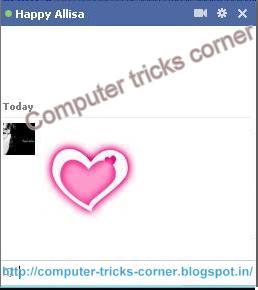
 Large Pink Double ( triple ) heart code


[[379320338758329]] [[379320355424994]] [[379320348758328]] [[379320352091661]] [[379320345424995]] [[379320455424984]]
[[379320448758318]] [[379320452091651]] [[379320445424985]] [[379320442091652]] [[379320525424977]] [[379320518758311]]
[[379320512091645]] [[379320522091644]] [[379320515424978]] [[379320602091636]] [[379320612091635]] [[379320605424969]]
[[379320598758303]] [[379320608758302]] [[379320702091626]] [[379320705424959]] [[379320692091627]] [[379320695424960]]
[[379320698758293]] [[379320778758285]] [[379320775424952]] [[379320788758284]] [[379320785424951]] [[379320782091618]]
[[379320872091609]] [[379320875424942]] [[379320865424943]] [[379320862091610]] [[379320868758276]] [[379320945424935]]


2. Mr. Bean


[[255016264574238]] [[255016271240904]] [[255016277907570]]
[[255016267907571]] [[255016274574237]] [[255016384574226]]
[[255016387907559]] [[255016394574225]] [[255016401240891]]
[[255016391240892]] [[255016464574218]] [[255016454574219]]
[[255016457907552]] [[255016461240885]] [[255016451240886]]
[[255016537907544]] [[255016531240878]] [[255016534574211]]
[[255016541240877]] [[255016527907545]] [[255016634574201]]


3. Jack Sparrow


[[298356520217565]] [[298356516884232]] [[298356506884233]] [[298356510217566]]
[[298356513550899]] [[298356620217555]] [[298356606884223]] [[298356616884222]]
[[298356610217556]] [[298356613550889]] [[298356673550883]] [[298356676884216]]
[[298356666884217]] [[298356680217549]] [[298356670217550]] [[298356740217543]]
[[298356733550877]] [[298356743550876]] [[298356730217544]] [[298356736884210]]
[[298356823550868]] [[298356810217536]] [[298356820217535]] [[298356826884201]]
[[298356813550869]] [[298356906884193]] [[298356896884194]] [[298356900217527]]
[[298356903550860]] [[298356893550861]] [[298356950217522]] [[298356946884189]]

4. Superman


[[299528860107644]] [[299528863440977]] [[299528866774310]] [[299528856774311]]
[[299528870107643]] [[299528950107635]] [[299528943440969]] [[299528946774302]]
[[299528953440968]] [[299528956774301]] [[299529013440962]] [[299529016774295]]
[[299529010107629]] [[299529003440963]] [[299529006774296]] [[299529060107624]]
[[299529063440957]] [[299529066774290]] [[299529070107623]] [[299529073440956]]
[[299529173440946]] [[299529183440945]] [[299529180107612]] [[299529176774279]]
[[299529186774278]] [[299529243440939]] [[299529236774273]] [[299529240107606]]

5. Elmo


[[302117289844540]] [[302117283177874]] [[302117276511208]] [[302117279844541]] [[302117286511207]] [[302117366511199]]
[[302117369844532]] [[302117373177865]] [[302117383177864]] [[302117379844531]] [[302117426511193]] [[302117436511192]]
[[302117429844526]] [[302117423177860]] [[302117433177859]] [[302117523177850]] [[302117529844516]] [[302117526511183]]
[[302117536511182]] [[302117533177849]] [[302117606511175]] [[302117596511176]] [[302117599844509]] [[302117593177843]]
[[302117603177842]] [[302117646511171]] [[302117649844504]] [[302117659844503]] [[302117656511170]] [[302117653177837]]
[[302117706511165]] [[302117703177832]] [[302117699844499]] [[302117709844498]] [[302117696511166]] [[302117749844494]]

6. Troll face


[[242538225822042]] [[242538222488709]] [[242538232488708]] [[242538219155376]] [[242538229155375]] [[242538339155364]]
[[242538335822031]] [[242538342488697]] [[242538345822030]] [[242538349155363]] [[242538392488692]] [[242538395822025]]
[[242538399155358]] [[242538402488691]] [[242538405822024]] [[242538475822017]] [[242538472488684]] [[242538489155349]]
[[242538492488682]] [[242538485822016]] [[242538562488675]] [[242538565822008]] [[242538569155341]] [[242538575822007]]
[[242538572488674]] [[242538612488670]] [[242538625822002]] [[242538619155336]] [[242538622488669]] [[242538615822003]]
[[242538675821997]] [[242538682488663]] [[242538672488664]] [[242538679155330]] [[242538685821996]] [[242538742488657]]


7.Mask


[[255006724575192]] [[25500672
7908525]] [[255006737908524]] [[255006734575191]] [[255006731241858]]
[[255006827908515]] [[255006831241848]] [[255006824575182]] [[255006817908516]] [[255006821241849]]
[[255006874575177]] [[255006871241844]] [[255006884575176]] [[255006877908510]] [[255006881241843]]
[[255006934575171]] [[255006931241838]] [[255006941241837]] [[255006944575170]] [[255006937908504]]
[[255007004575164]] [[255007001241831]] [[255006994575165]] [[255006997908498]] [[255006991241832]]
[[255007084575156]] [[255007101241821]] [[255007077908490]] [[255007091241822]] [[255007081241823]]

NOTE:-
IF these codes are not working Properly please visit our Facebook page and copy these codes from there .


Facebook all latest cool chat emotions with codes

Gone the days when Facebook  chat emotions are limited to only few emotions now days there's a lots of stuff you can do on facebook chat . Like How to use colorful text / words / alphabets in facebook chat  or How to add your friends profile pic in facebook chat  Now Take a look at the total new form of facebook chat emotions with all the codes .


[[f9.laugh]] 
[[f9.sad]] 
[[f9.angry]] 
[[f9.sleepy]] 
[[f9.shock]] 
[[f9.kiss]] 
[[f9.inlove]] 
[[f9.pizza]] 
[[f9.coffee]] 
[[f9.rain]] 
[[f9.bomb]] 
[[f9.sun]] 
[[f9.heart]] 
[[f9.heartbreak]] 
[[f9.doctor]] 
[[f9.ghost]] 
[[f9.brb]] 
[[f9.wine]] 
[[f9.gift]] 
[[f9.adore]] 
[[f9.angel]] 
[[f9.baloons]] 
[[f9.bowl]] 
[[f9.cake]] 
[[f9.callme]] 
[[f9.clap]] 
[[f9.confused]] 
[[f9.curllip]] 
[[f9.devilface]] 
[[f9.lying]] 
[[f9.rofl]] 
[[f9.billiard]] 
[[f9.cakepiece]] 
[[f9.rosedown]] 
[[f9.shutmouth]] 
[[f9.shy]] 
[[f9.silly]] 
[[f9.tongue1]] 
[[f9.fastfood]] 
[[f9.ring]] 
[[f9.plate]] 
[[f9.candle]] 
[[f9.party]]

How to use these codes ..? 
Just simply copy them from above [ctrl-c] and paste[ctrl-v] them in your chat window

How to create your own keyboard shourcut

Are there folders or applications you need a lot or use them havily?  Do you know that you can create your own keyboard shortcut to quickly access that file,folder or application by creating a keyboard shortcut.
NOTE:-This will only work for shortcuts located on your desktop
Steps to create your own keyboard shortcut:-
  • First you need to create an actual desktop shortcut for the application thats shorcut you want to create.
  • Go to application whose keyboard shortcut your want to create
  • Right-click on the application and select > Create Shortcut from the context menu. Make sure the shortcut sits on your desktop.

  • Now goto desktop right-click the shortcut created and select > Properties. You should see a line that says “Shortcut Key: <none>”. Click that line and then click a letter ony our keyboard, for example F. A shortcut will be created, in this example [Ctrl] + [alt] + [F].

  • And there you go, now you have your own personal shortcut key.

Top 10 google i'm feeling lucky tricks


How many times have you made searches on google? How you search on google ,you see search bar enter a key word and you click on google search, you see I’m Feeling Lucky button just besides the Google search button, have you ever clicked on I’m Feeling Lucky button, what does it do ? 
The "I'm Feeling Lucky" button automatically takes you to the first web page
returned for your query.
An "I'm Feeling Lucky" search means less time searching for web pages and more time looking at them.

After a thorough study and searching here we bring you 10 most interesting tricks and ‘Keywords’ which you enter in Google search bar and press the I’m feeling lucky button would results in funny rather peculiar results, the below are the following such keywords, enter them and experience the results. Some are rated with a * symbol (indicating a must try keywords)


Go to "www.google.com " and type any of the following keywords and  click on ‘I’m Feeling Lucky button


  • Type in  Google Gravity and wait a sec to experience the effect of gravity.
  •   Type in “French Military Victories” and press "I'm feeling lucky".
  •   Type in “elgoog”and the Mirror effect is on.
  •  Type in “Google Sphere” and see the spinning effect.
  •  Type in “find Chuck Noris” (A must search keyword for al Chuck Norris Fans :D).
  •   Type in “who is the cutest” and see who’s so cute and beautiful/handsome.
  •  Type in “2204355” and see (You’ve been Chicken Rolled).
  •  Type in “Google Loco” and see what’s moving.
  •  Type in “ LOL Limewire” and see that you are as a pirate.
  • Type in “Epic Google,
       
  • Type in Rainbow google,
  • Type in Annoying Google, 
  • Type in Google pacman,  
  • Type in Google Magic, 
  • Type in Google color (Ex: pink,blue),  

    Watch the video(google gravity trick)


    Google Plus Shortcut Keys List for G+ Users


        Space Ba              :-              Scroll down the stream

        Shift + Space        :-              Scroll up the stream

        J                          :-              Single post down scroll

        K                          :-              Single post up scroll

        Q                          :-              Jump to chat

        Enter                     :-              Start comment

        Tab + Enter            :-              End comment

        +/@                       :-              Mention someone in the comment or post.
       
        Backspace              :-              Back to last page

    Google Chrome Shortcut Keys


    Tab and window shortcuts

    Ctrl+N Opens a new window.
    Ctrl+T Opens a new tab.
    Ctrl+Shift+N Opens a new window in incognito mode.
    Press Ctrl+O, then select file. Opens a file from your computer in Google Chrome.
    Press Ctrl and click a link. Or click a link with your middle mouse button (or mousewheel). Opens the link in a new tab in the background .
    Press Ctrl+Shift and click a link. Or press Shift and click a link with your middle mouse button (or mousewheel). Opens the link in a new tab and switches to the newly opened tab.
    Press Shift and click a link. Opens the link in a new window.
    Ctrl+Shift+T Reopens the last tab you've closed. Google Chrome remembers the last 10 tabs you've closed.
    Drag a link to a tab. Opens the link in the tab.
    Drag a link to a blank area on the tab strip. Opens the link in a new tab.
    Drag a tab out of the tab strip. Opens the tab in a new window.
    Drag a tab out of the tab strip and into an existing window. Opens the tab in the existing window.
    Press Esc while dragging a tab. Returns the tab to its original position.
    Ctrl+1 through Ctrl+8 Switches to the tab at the specified position number on the tab strip.
    Ctrl+9 Switches to the last tab.
    Ctrl+Tab or Ctrl+PgDown Switches to the next tab.
    Ctrl+Shift+Tab or Ctrl+PgUp Switches to the previous tab.
    Alt+F4 Closes the current window.
    Ctrl+W or Ctrl+F4 Closes the current tab or pop-up.
    Click a tab with your middle mouse button (or mousewheel). Closes the tab you clicked.
    Right-click, or click and hold either the Back or Forward arrow in the browser toolbar.Displays your browsing history in the tab.
    Press Backspace, or Alt and the left arrow together.Goes to the previous page in your browsing history for the tab.
    Press Shift+Backspace, or Alt and the right arrow together.Goes to the next page in your browsing history for the tab.
    Press Ctrl and click either the Back arrow, Forward arrow, or Go button in the toolbar. Or click either button with your middle mouse button (or mousewheel).Opens the button destination in a new tab in the background.
    Double-click the blank area on the tab strip.Maximizes or minimizes the window.
    Alt+Home Opens your homepage in your current window.

    Google Chrome feature shortcuts

    Alt+F or Alt+EOpens the wrench menu, which lets you customize and control settings in Google Chrome.
    Ctrl+Shift+B Toggles the bookmarks bar on and off.
    Ctrl+H Opens the History page.
    Ctrl+J Opens the Downloads page.
    Shift+Esc Opens the Task Manager.
    Shift+Alt+TSets focus on the first tool in the browser toolbar. You can then use the following shortcuts to move around in the toolbar:
    • Press Tab, Shift+Tab, Home, End, right arrow, and left arrow to move focus to different items in the toolbar.
    • Press Space or Enter to activate toolbar buttons, including page actions and browser actions.
    • Press Shift+F10 to bring up any associated context menu (e.g. browsing history for the Back button).
    • Press Esc to return focus from the toolbar back to the page.
    F6 or Shift+F6Switches focus to the next keyboard-accessible pane. Panes include:
    • Address bar
    • Bookmarks bar (if visible)
    • The main web content (including any infobars)
    • Downloads bar (if visible)
    Ctrl+Shift+JOpens Developer Tools.
    Ctrl+Shift+DeleteOpens the Clear Browsing Data dialog.
    F1Opens the Help Center in a new tab (our favorite).

    Address bar shortcuts

    Use the following shortcuts in the address bar:
    Type a search term, then press Enter. Performs a search using your default search engine.
    Type a search engine keyword, press Space, type a search term, and press Enter.Performs a search using the search engine associated with the keyword.
    Begin typing a search engine URL, press Tab when prompted, type a search term, and press Enter.Performs a search using the search engine associated with the URL.
    Ctrl+Enter Adds www. and .com to your input in the address bar and open the resulting URL.
    Type a URL, then press Alt+Enter.Opens the URL in a new tab.
    Ctrl+L or Alt+DHighlights the URL.
    Ctrl+K or Ctrl+EPlaces a '?' in the address bar. Type a search term after the question mark to perform a search using your default search engine.
    Press Ctrl and the left arrow together.Moves your cursor to the preceding key term in the address bar
    Press Ctrl and the right arrow together.Moves your cursor to the next key term in the address bar
    Ctrl+BackspaceDeletes the key term that precedes your cursor in the address bar
    Select an entry in the address bar drop-down menu with your keyboard arrows, then press Shift+Delete.Deletes the entry from your browsing history, if possible.
    Click an entry in the address bar drop-down menu with your middle mouse button (or mousewheel).Opens the entry in a new tab in the background.
    Press Page Up or Page Down when the address bar drop-down menu is visible.Selects the first or last entry in the drop-down menu.

    Webpage shortcuts

    Ctrl+P Prints your current page.
    Ctrl+S Saves your current page.
    F5 or Ctrl+R Reloads your current page.
    EscStops the loading of your current page.
    Ctrl+F Opens the find bar.
    Ctrl+G or F3 Finds the next match for your input in the find bar.
    Ctrl+Shift+G, Shift+F3, or Shift+Enter Finds the previous match for your input in the find bar.
    Click the middle mouse button (or mousewheel).Activates auto-scrolling. As you move your mouse, the page automatically scrolls according to the direction of the mouse.
    Ctrl+F5 or Shift+F5 Reloads your current page, ignoring cached content.
    Press Alt and click a link. Downloads the target of the link.
    Ctrl+U Opens the source of your current page.
    Drag a link to bookmarks bar Saves the link as a bookmark.
    Ctrl+D Saves your current webpage as a bookmark.
    Ctrl+Shift+D Saves all open pages as bookmarks in a new folder.
    F11Opens your page in full-screen mode. Press F11 again to exit full-screen.
    Ctrl and +, or press Ctrl and scroll your mousewheel up. Enlarges everything on the page.
    Ctrl and -, or press Ctrl and scroll your mousewheel down. Makes everything on the page smaller.
    Ctrl+0 Returns everything on the page to normal size.
    Space barScrolls down the web page.
    HomeGoes to the top of the page.
    EndGoes to the bottom of the page.
    Press Shift and scroll your mousewheel.Scrolls horizontally on the page.

    Text shortcuts

    Ctrl+CCopies highlighted content to the clipboard.
    Ctrl+V or Shift+InsertPastes content from the clipboard.
    Ctrl+Shift+VPaste content from the clipboard without formatting.
    Ctrl+X or Shift+DeleteDeletes the highlighted content and copies it to the clipboard.

    SECRET CODES FOR NOKIA.


    *# Codes for Nokia handsets :-  


    *#06#                                     For checking IMEI(international Mobile Equipment Identity)

    *#7780#                                Reset to factory settings
     

    *#0000#                               To view software version
     

    *#2820#                                Bluetooth device address
     

    *#746025625#                    Sim clock allowed status
     

     #pw+1234567890+1#      Shows if ur sim as any restrictions

     *#3283#                               To verify the set Manufacturing date

     *#67705646#                      Use to delete the operator logo

     *#73#                                    Use to reset game scores and phone timers

     *#92702689#                      To display the mobile warranty related settings 


    Latest Facebook chat emotions. or How to use Like symbol in Facebook chat

    ALL THE FACEBOOK LATEST CHAT  EMOTIONS .


    • Bold Text in Facebook Chat: If you want to write bold text then you would start your text with star '*'and end with'*' for example *Bold Text* will appear Bold Text.

    • Underline Text in Facebook Chat: If you want to write underline text then you would start your text with underscore '_' and end with '_' for example _Underline Text_ will appear as Underline Text.

    • Bold with Underline Text in Facebook Chat: In this case you would be start your text with star together with underscore '*_' and end with '_*' for example *_Bold with Underline Text_* will appear as Bold with Underline Text.

    ADD A COMMENT IF U FIND A NEW ONE..! !!

    Microsoft word Shorcut keys


    ShortcutDescription
    Ctrl + ASelect all (including text, graphics).
    Ctrl + BBold.
    Ctrl + IItalic.
    Ctrl + UUnderline.
    Ctrl + CCopy.
    Ctrl + VPaste.
    Ctrl + XCut.
    Ctrl + FFind.
    Ctrl + ZUndo.
    Ctrl + YRedo.
    Ctrl + POpen the print dialog.
    Ctrl + KInsert link.
    Ctrl + LLeft align.
    Ctrl + ECenter align.
    Ctrl + RRight align.
    Ctrl + MIndent.
    Ctrl + (left arrow)Moves one word to the left.
    Ctrl + (right arrow)Moves one word to the right.
    Ctrl + (up arrow)Moves cursor to the beginning of the paragraph.
    Ctrl + (down arrow)Moves cursor to the end of the paragraph.
    Ctrl + Shift + FChange font.
    Ctrl + Shift + *View/hide non-printing characters.
    Ctrl + DelDeletes word to the right of cursor.
    Ctrl + BackspaceDeletes word to the left of cursor.
    Ctrl + EndMoves cursor to the end of document.
    Ctrl + HomeMoves cursor to the beginning of document.
    Ctrl + SpacebarReset highlighted text to the default font.
    Ctrl + 1Single-space.
    Ctrl + 2Double-space.
    Ctrl + 51.5-line.
    Ctrl + Alt + 1Format text: heading 1.
    Ctrl + Alt + 2Format text: heading 2.
    Ctrl + Alt + 3Format text: heading 3.
    F1Help.
    F4Repeat the last action
    F5Go to .
    F7Spelling and grammar.
    F12Save as.
    F8 then (left arrow)Increase selection to the left by one character
    F8 then (right arrow)Increase selection to the right by one character
    Ctrl + F1Task Pane.
    Ctrl + F2Print preview.
    Alt + Ctrl + F2New document.
    Shift + F3Cycle between capitalized formats
    Ctrl + InsertCopy.
    Shift + InsertPaste.
    Shift + EndSelect from current position to the end of the line.
    Shift + HomeSelect from current position to the beginning of the line.
    Ctrl + Shift + (left arrow)Select from current position to the beginning of the word.
    Ctrl + Shift + (right arrow)Select from current position to the end of the word.
    Ctrl + Shift + (up arrow)Select from current position to the beginning of the document.
    Ctrl + Shift + (down arrow)Select from current position to the end of the document.
    Ctrl + Shift + Page UpSelect from current position to the beginning of the window.
    Ctrl + Shift + Page DownSelect from current position to the end of the window.
    Shift + Page UpOne screen page up.
    Shift + Page DownOne screen page down.
    Shift + F7Thesaurus check selected text.
    Shift + F12Save.
    Ctrl + Shift + F12Print.
    Alt + Shift + DInsert the current date.
    Alt + Shift + TInsert the current time.

    Mozilla Firefox shortcut keys

    * Ctrl + Tab or Ctrl + PageDown: Cycle through tabs.
    * Ctrl + Shift + Tab or Ctrl + PageUp: Cycle through tabs in reverse.
    * Ctrl + (1-9): Switch to tab corresponding to number.
    * Ctrl + N: New window.
    * Ctrl + T: New tab.
    * Ctrl + L or Alt + D or F6: Switch focus to location bar.
    * Ctrl + Enter: Open location in new tab.
    * Shift + Enter: Open location in new window.
    * Ctrl + K or Ctrl + E: Switch focus to search bar.
    * Ctrl + O: Open a local file.
    * Ctrl + W: Close tab, or window if there's only one tab open.
    * Ctrl + Shift + W: Close window.
    * Ctrl + S: Save page as a local file.
    * Ctrl + P: Print page.
    * Ctrl + F or F3: Open find toolbar.
    * Ctrl + G or F3: Find next...
    * Ctrl + Shift + G or Shift + F3: Find previous...
    * Ctrl + B or Ctrl + I: Open Bookmarks sidebar.
    * Ctrl + H: Open History sidebar.
    * Escape: Stop loading page.
    * Ctrl + R or F5: Reload current page.
    * Ctrl + Shift + R or Ctrl + F5: Reload current page; bypass cache.
    * Ctrl + U: View page source.
    * Ctrl + D: Bookmark current page.
    * Ctrl + NumpadPlus or Ctrl + Equals (+/=): Increase text size.
    * Ctrl + NumpadMinus or Ctrl + Minus: Decrease text size.
    * Ctrl + Numpad0 or Ctrl + 0: Set text size to default.
    * Alt + Left or Backspace: Back.
    * Alt + Right or Shift + Backspace: Forward.
    * Alt + Home: Open home page.
    * Ctrl + M: Open new message in integrated mail client.
    * Ctrl + J: Open Downloads dialog.
    * F6: Switch to next frame. You must have selected something on the page already, e.g. by use of Tab.
    * Shift + F6: Switch to previous frame.
    * Apostrophe ('): Find link as you type.
    * Slash (/): Find text as you type. 

    Gmail shortcuts


    * Note: Must have "keyboard shortcuts" on in settings.
    * C: Compose new message.
    * Shift + C: Open new window to compose new message.
    * Slash (/): Switch focus to search box.
    * K: Switch focus to the next most recent email. Enter or "O" opens focused email.
    * J: Switch focus to the next oldest email.
    * N: Switch focus to the next message in the "conversation." Enter or "O" expands/collapses messages.
    * P: Switch focus to the previous message.
    * U: Takes you back to the inbox and checks for new mail.
    * Y: Various actions depending on current view:
    * Has no effect in "Sent" and "All Mail" views.
    * Inbox: Archive email or message.
    * Starred: Unstar email or message.
    * Spam: Unmark as spam and move back to "Inbox."
    * Trash: Move back to "Inbox."
    * Any label: Remove the label.
    * X: "Check" an email. Various actions can be performed against all checked emails.
    * S: "Star" an email. Identical to the more familiar term, "flagging."
    * R: Reply to the email.
    * A: Reply to all recipients of the email.
    * F: Forward an email.
    * Shift + R: Reply to the email in a new window.
    * Shift + A: Reply to all recipients of the email in a new window.
    * Shift + F: Forward an email in a new window.
    * Shift + 1 (!): Mark an email as spam and remove it from the inbox.
    * G then I: Switch to "Inbox" view.
    * G then S: Switch to "Starred" view.
    * G then A: Switch to "All Mail" view.
    * G then C: Switch to "Contacts" view.
    * G then S: Switch to "Drafts" view.
    Older Post ►
     

    Copyright 2011 Comp Tricks Corner is proudly powered by blogger.com